Category

S-Docs Cookbook

Live Edit: Allow Users to Edit Generated Documents

By General Solutions No Comments

Check The "Allow Edit" Checkbox

If you find yourself in need of editing a document after it’s been generated, no worries! The S-Docs Live Edit feature enables end-users to open and edit generated documents wherever they're linked in Salesforce.

Note: This feature is only available for PDF, PDF-Upload, HTML, and DOC templates.

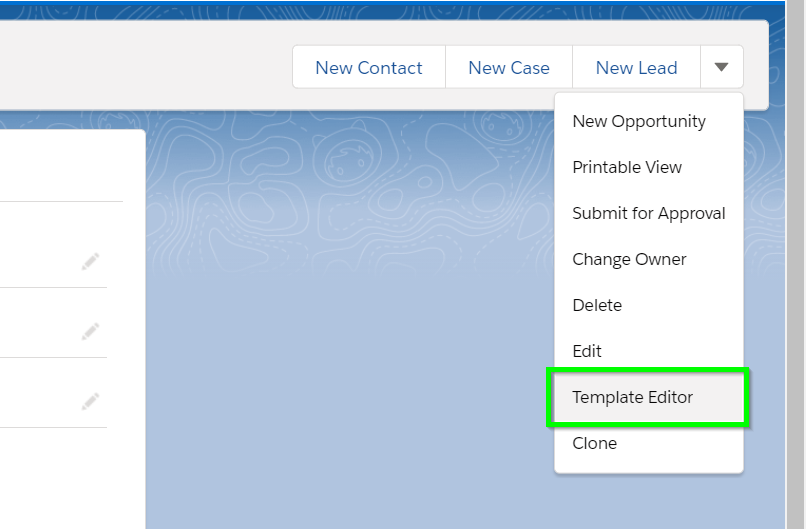
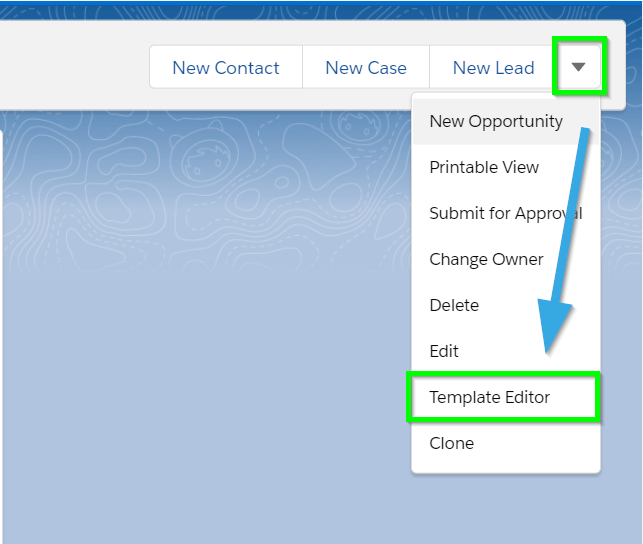
To enable this feature, navigate to the template record detail page for the template that should be editable after generation. Click the dropdown arrow on the right, and then click Template Editor to open up the S-Docs template editor.

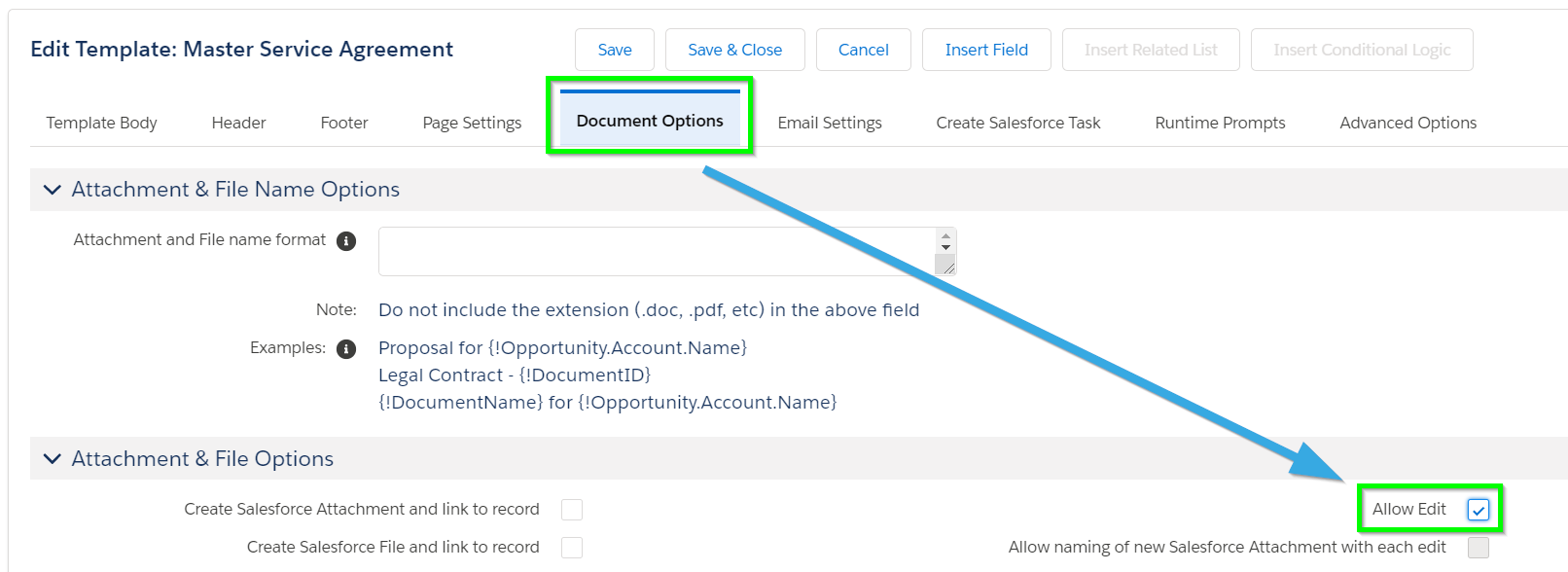
Navigate to the Document Options tab, then check the Allow Edit checkbox, which can be found under the Attachment & File Options section.

After you save your template, an edit link (a pencil icon) will appear next to the document each time it is generated.

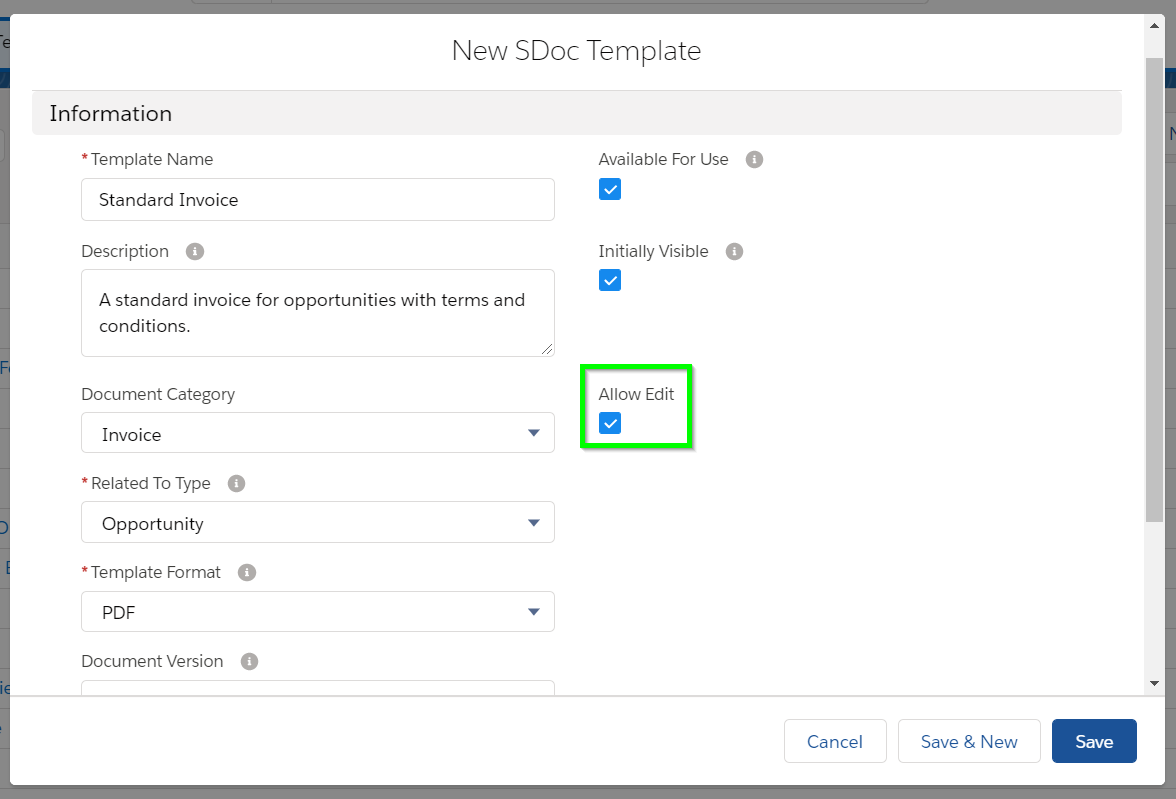
Note: If you are using S-Docs version 4.325 or below, the Allow Edit checkbox will not be available within the template editor. It will instead be available as a field on the template creation page & template detail page.

Generate and Edit A Document

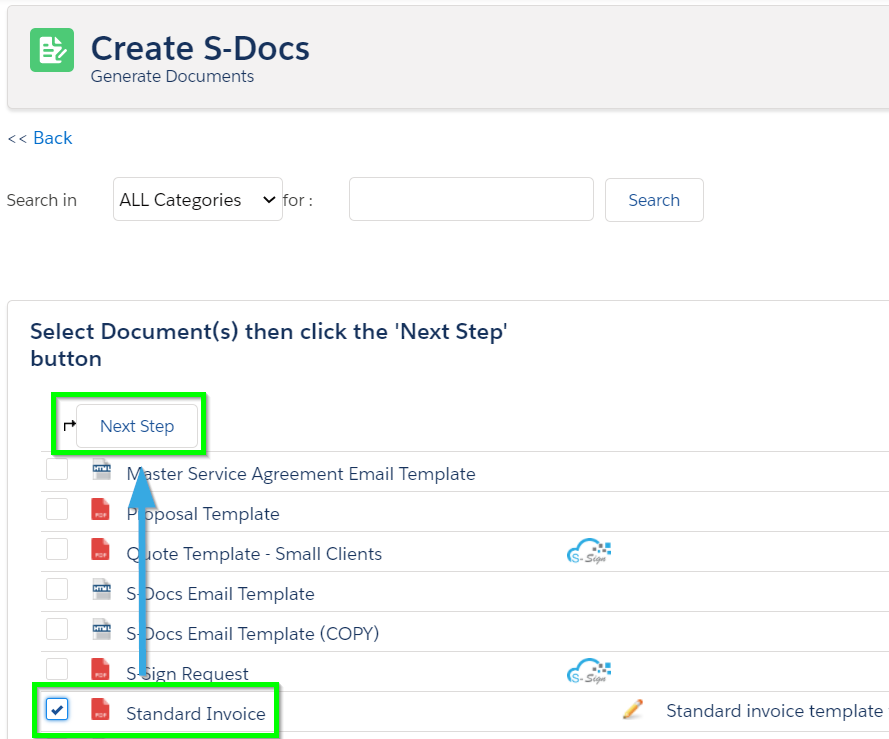
In this example, we’re going to generate an invoice from an Opportunity. The process is the same as any other document generation. We’re going to select the “Standard Invoice” document and then click Next Step.

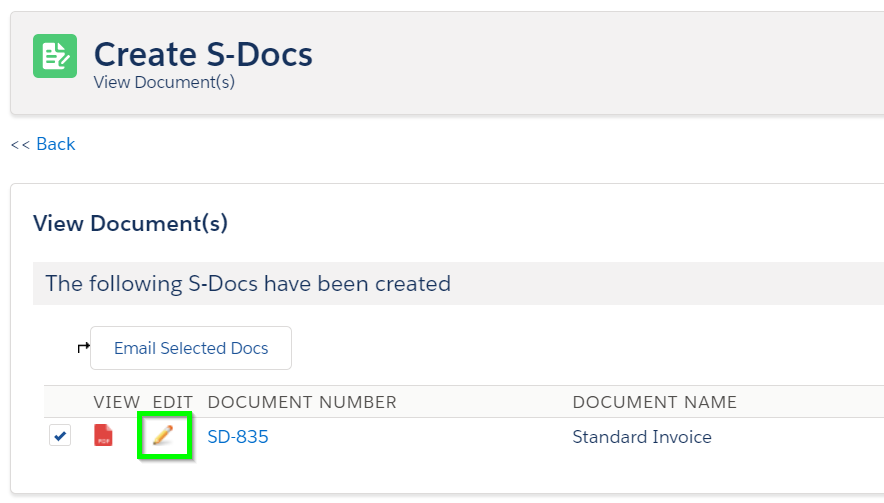
Once your document is generated, you can edit it by clicking the pencil icon. You can also click Emailed Selected Docs to proceed to the email page and make your edits from there, or find the document in the S-Docs related list on the record that you generated the document from.  The pencil icon will appear wherever this document is stored in Salesforce, allowing you maximum editing flexibility. We'll click the pencil icon now.

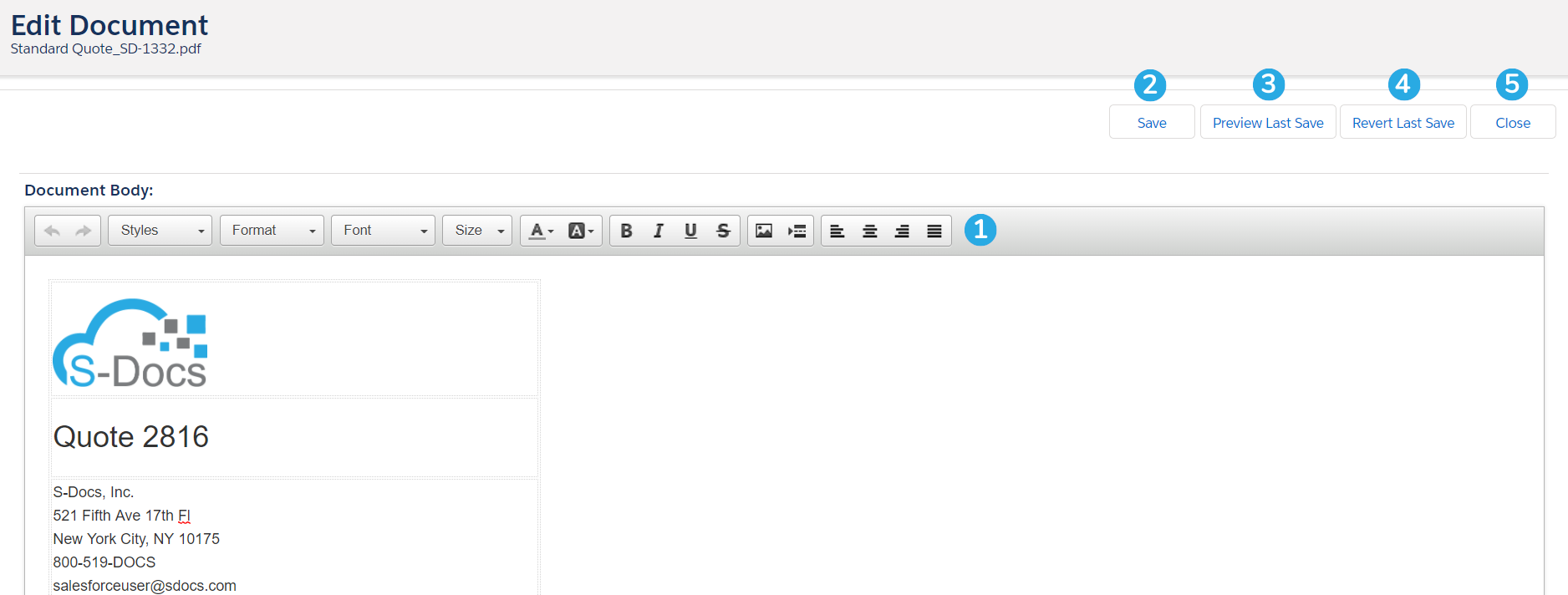
The live edit screen will appear as follows in a new tab:

You can [1] make edits to your document and use the toolbar to apply styling. [2] Click Save to save your changes, and then [3] click Preview Last Save to preview how your changes will appear in the final document.

Note: If you click the Preview Last Save button before saving, it will display your document without your edits.

If you're not happy with your edits, [4] click Revert Last Save to undo your changes. [5] Click Close to close the edit window and return to the page you started from (in this case, the generated documents page).

That's all there is to it!

Whitelist Profiles for Live Edit

By default, all users with S-Docs licenses enabled are able to edit documents that have the live edit feature enabled. However, you can also disable live editing for all users by default and allow only specific profiles to use the feature.

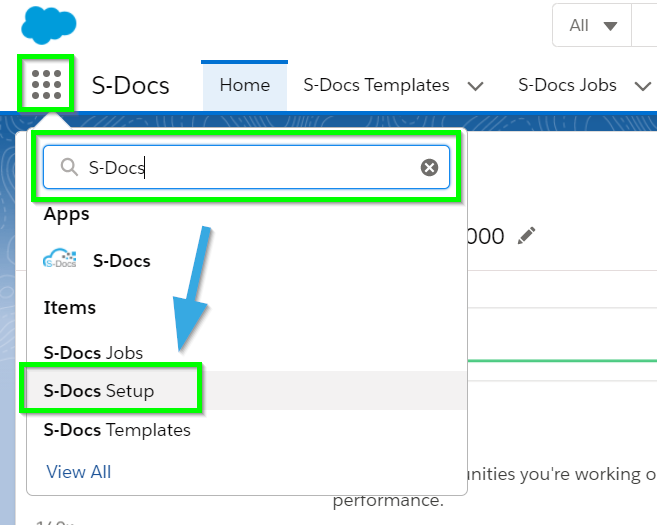
To do so, navigate to the S-Docs Setup tab by clicking the App Launcher, typing in "S-Docs," and clicking S-Docs Setup in the dropdown menu.

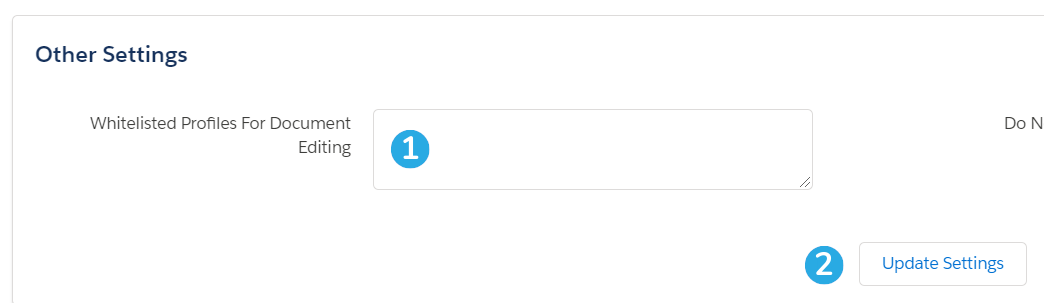
Scroll down to the Other Settings section.  From there, you can [1] enter a new-line delimited list of profile names that should have access to live editing. Then, [2] click Update Settings.  Only users with profiles in the list will be able to live edit documents.

Limitations

While the Live Edit feature is convenient way to modify documents after they have been generated, it does come with a few limitations.

  1. PDF, PDF-Upload, HTML, and DOC are the only file output types supported.
  2. Editing cannot be restricted to certain sections of the document; the Live Edit feature gives users access to edit the entire document (except for PDF-Upload templates. With this format, only merged field data can be edited).

Creating Your First S-Docs Template

By General Solutions, Uncategorized No Comments

Introduction

This document will teach you how to create your first S-Docs template and navigate to the template editor. Since S-Docs is 100% native to Salesforce, creating your first template is a simple process. Any records you create using S-Docs will be stored within the Salesforce cloud. To learn more about the S-Docs template editor, click here. To view the S-Docs template library, which contains free and easy-to-customize downloadable templates, click here.

You can also watch the following video for a more comprehensive tutorial that goes over the different elements of the template editor and how to design a simple quote template.

Video Tutorial

Written Instructions

Create A New Template

To begin, navigate to the S-Docs app by clicking the App Launcher in the upper left corner, and then selecting S-Docs.

Click over to the S-Docs Templates tab. This page will display all of the templates you create. To create a new one, click New.

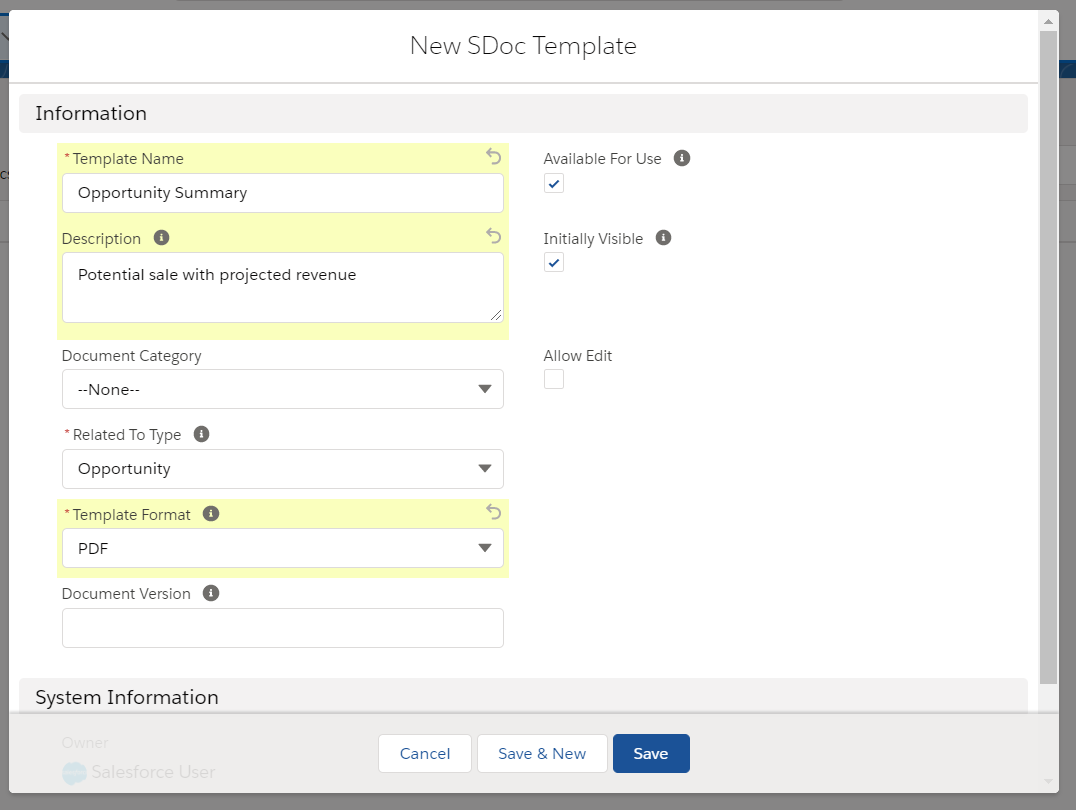
This will bring up the initial template creation page (not the template editor). To get started quickly, you only need to complete the fields indicated with a red asterisk, and then click the Save button. In this example we will create an opportunity summary sheet from the "Opportunity" object, but you can enter any values you want. All of the fields are explained below.

Template Name: Enter a template Name. This field is required.
Description: Optionally add a description. You should include any keywords that will be useful when searching for this template, because this field and the name field are searched during the document selection step. End users will see this field in the template listings.
Document Category: Optionally chose a category from the picklist. Templates can be grouped together so that a user can browse templates by using a category picklist. If needed, you can later customize this picklist.
Related to Type: Pick an object from the picklist. This is the base or primary object this template will use. If needed, you can customize this list with your custom objects. This field is required.
Template Format: Pick an output format. To support the same document in multiple formats, simply clone the template with a different "Format" field value. This field is required.
Document Version: Use this field to track any internally used version number (or date) for this template. It is only used for reference purposes.
Available for Use: Keep this box checked (it is checked by default). This ensures that the template is visible for new document creation.
Initially Visible: Keeping this box checked (it is checked by default) will make this template visible on initial load of the document creation page based on the object type. Typically, you want to set this checkbox for the 10 most used templates for each object type.
Allow Edit: If you want users to be able to edit this document after it has been generated, check this box. Read more about this feature.

Once you've filled in all of the values to your specifications, click Save. You will be redirected to the template detail record.

Use The Template Editor

From the template detail record, click the dropdown arrow in the top right, then select Template Editor to design your template.

This is a very basic overview of the template editor. For a more in-depth explanation, click here.

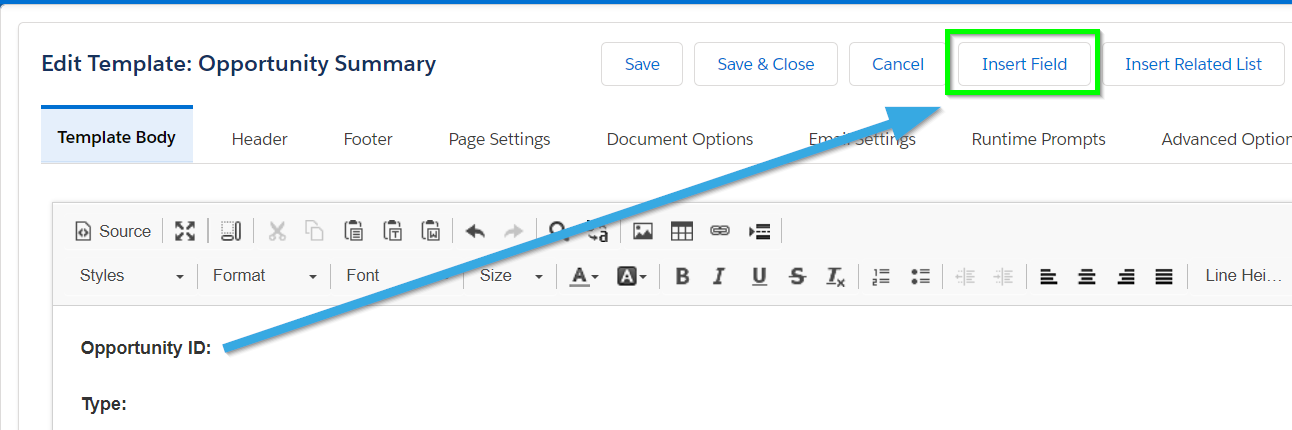
This is the WYSIWYG template editor (What You See Is What You Get). Add some text, place the cursor where you want your Salesforce record data to be merged into the template, and then click on the Insert field button.

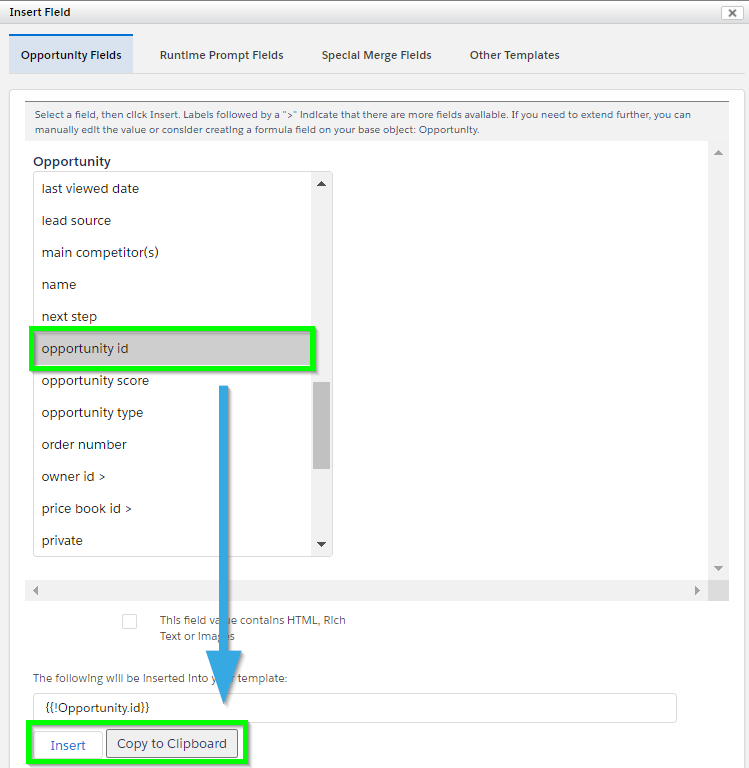
Select the field you want to insert and click Insert. The editor will add the merge field in the correct syntax into the template editor.

Repeat the above step for other fields. You can also use the editor tools to modify the document. Or, click Source to view the HTML and add your own styles. The customization options are endless. Click Save when done.

You have now created your first template.

Note: You can also insert images, span related objects and create child object line items and add CSS stylesheets. The possibilities are endless!

Automating Emails with Process Builder

By General Solutions, S-Docs Cookbook No Comments

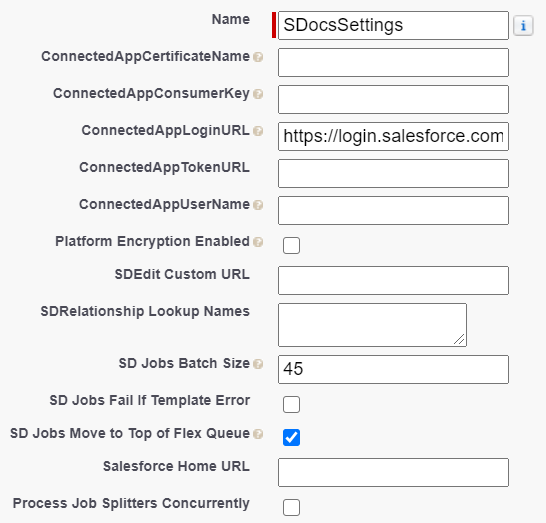
Winter '20 Release Note: If you are using S-Docs below version 4.53, you may experience an "Attempt to de-reference a null object" error when interacting with various forms of automation in S-Docs. In order to fix this bug, you can create a new SDocs Settings custom settings set. To do this, type "Custom Settings" into the Quick Find / Search bar in the Setup menu, and click Custom Settings. Click SDocsSettings, then click Manage at the top of the page. From there, click New. Fill out the following information:

Name: SDocsSettings
ConnectedAppLoginURL:
Production: login.salesforce.com
Sandbox: test.salesforce.com
SD Jobs Batch Size: 45
SD Jobs Move to Top of Flex Queue:

Additionally, ensure that you have a Remote Site Setting for either login.salesforce.com (production), or test.salesforce.com (sandbox).

Generating automated emails with S-Docs Jobs is simple, and using the Process Builder is the quickest approach. For information on automation and batch processing, click here.

Video Tutorial

The following video will go over 2 examples:

  1. Auto-sending a welcome email to new clients
  2. Auto-sending an invoice for won opportunities.

You can also refer to the written instructions below the video for a similar example.

Auto-Generating A Welcome Email For New Contacts

In this example, we will generate an email welcome letter whenever a contact is created by using an S-Docs Job in a Salesforce Process. We'll use 2 templates for this process: an HTML template to fill out the body of the email, and a PDF template for the welcome letter that will be attached to the email. Make sure you specify an email address in the Email Settings tab of the HTML template; typically, you'd want to put {!contact.email} in the recipient field so that when this process is invoked, the email address is automatically specified for each unique contact created. Click here to learn more about creating email templates.

Before you begin, note the names of your templates, as you will need them later.

Note: You can also use a template's ID in place of a template's name for the "doclist" parameter. However, template IDs will change from sandbox to production orgs, so we recommend using the template names if possible. Keep in mind that if there are multiple templates in your org with the same name, all of them will generate if one of them is referenced by your process.

Create A New Process In Process Builder

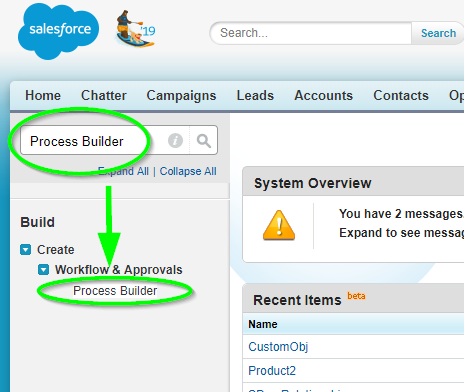
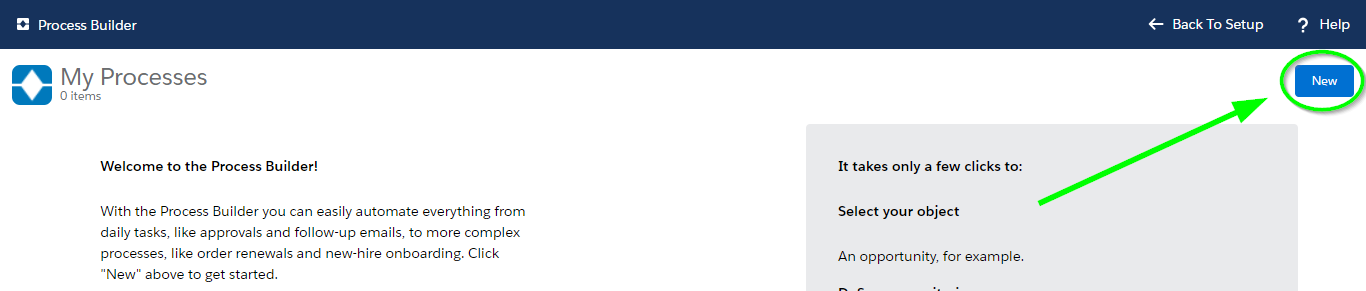
Navigate to Setup > Build > Create > Workflow & Approvals > Process Builder and create a new Process by clicking New.

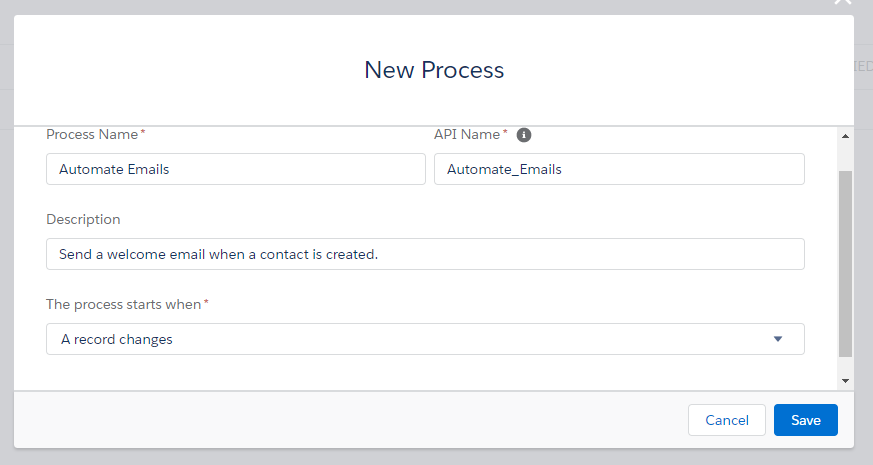
Fill in a name and optionally a description for your process. Choose to start the process when "A record changes." Click Save.

Add Your Object

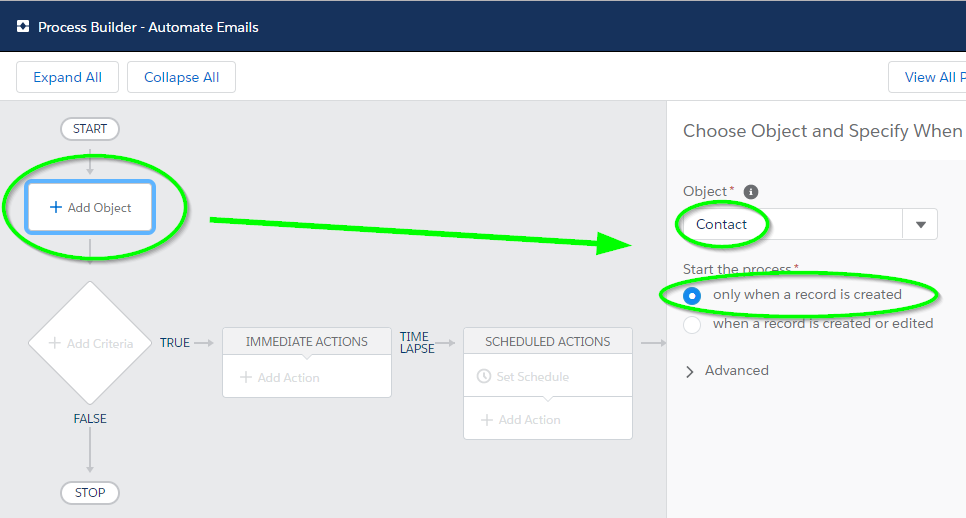
Click Add Object, choose Contact, and start the process only when a record is created.

Add "No Criteria"

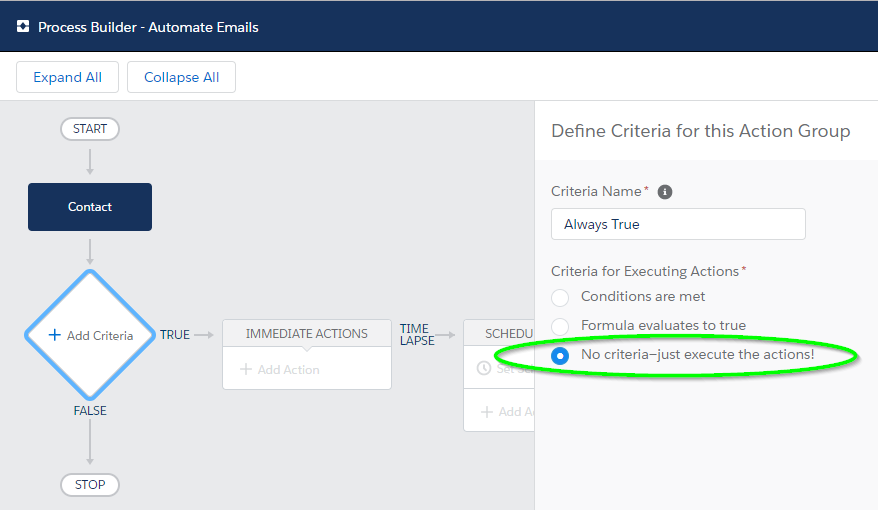
Then, we click Add Criteria and set it to No Criteria, since we want our Job to execute every time a new contact record is created.

Add The "Create A Record" Action

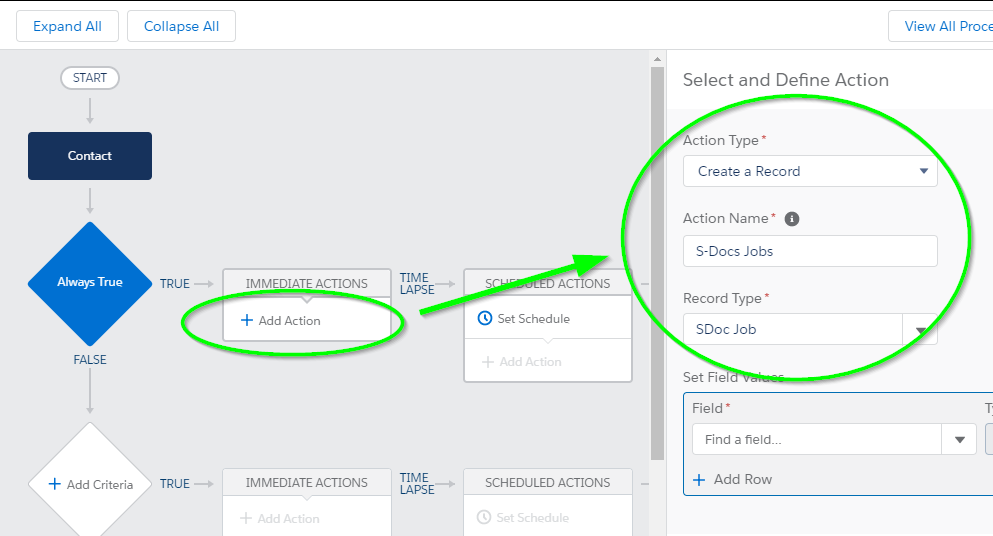
Next, click Add Action and choose Create a Record for our action type. Select SDoc Job for our record type.

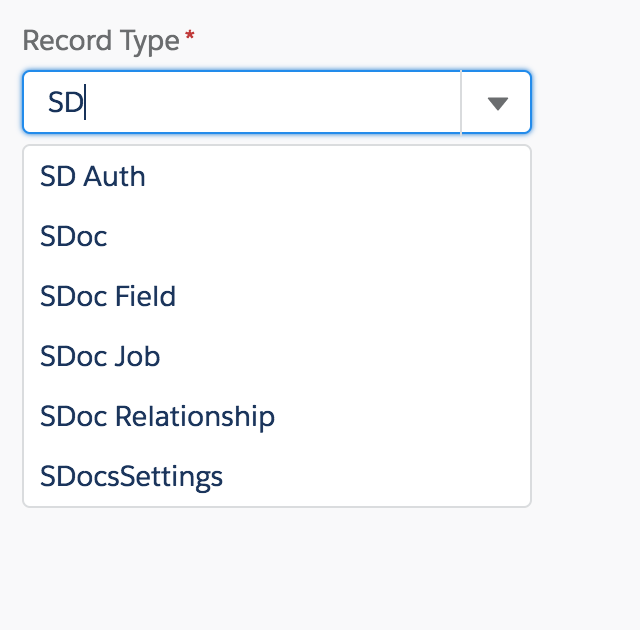
If you are having trouble finding SDoc Job in the picklist, type in "SD" and SDoc Job will appear.

Add S-Doc Job Field Values

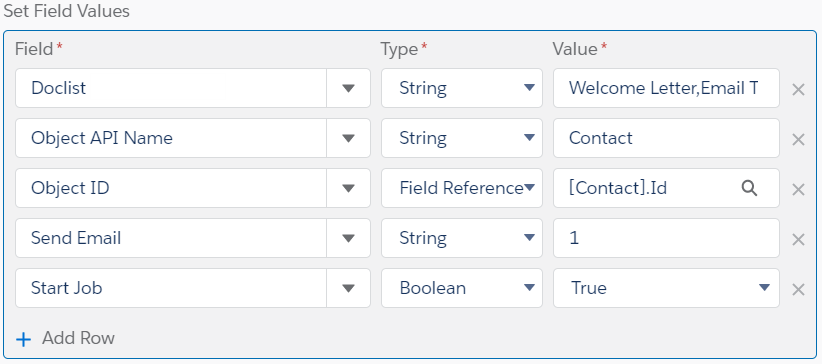
Next, we will add the following 5 field values:

Start JobThe type will be a Boolean set to ‘true’ so that the specified documents will automatically generate (and in this case, automatically email, as we have specified to do so using the Job’s email fields) upon the creation of this particular S-Doc Job record.

Send EmailThe type will be a String with a value of ‘1,’ so that an S-Doc Job record will email the document it generated. If we set this to ‘0,’ an email will not be sent, thus, we will be setting this to ‘1.’

Object ID: The type is a Reference because we are referring to the ID of the record we are creating objects for, and we look up the value "Contact ID." This gives this field the value [Contact].Id, so when this S-Doc Job runs for a newly created contact, it will know that contact's ID.

Object API NameThe type is a String and it is the API name of our objects. In our example, we’re creating this trigger for new contacts, so we store Contact in this field.

Doclist: The type is a String. The value is the comma-delimited list of S-Docs template names that we will be using to generate our documents. Make sure there aren’t any spaces in your comma-delimited list. In our example, Welcome Letter is the name of our S-Doc template for a welcome letter PDF, and Email Template is the name of our S-Doc template for an HTML email.

Additionally, if we wanted this S-Doc Job to be run as a different user, we would click Add Row and add the "Run as User" field. For "Value," we would enter the username of the user we want this Job to be run under.

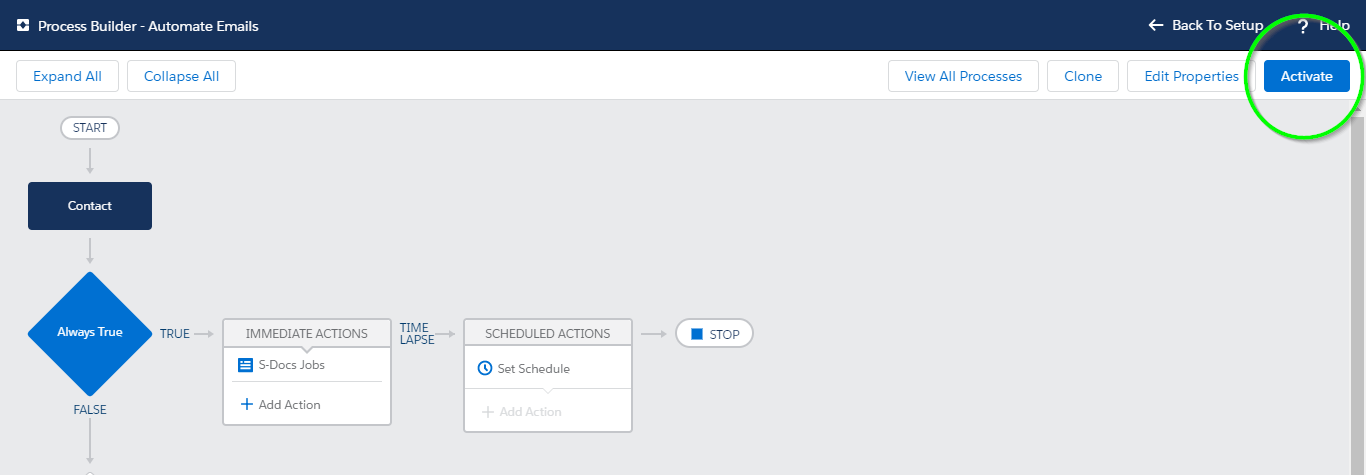
Then, we click Save and click Activate at the top right of the screen.

All done! S-Docs will now automatically generate and email a welcome letter whenever a contact is created.

Additional Fields

While we only used 5 fields in the process above, S-Docs Jobs also support a number of other fields that you can use to further customize your process.

Email From

Email From allows you to set an org-wide email address as the From address when your S-Docs Job process includes emailing a document.

Email Params

Email Params allows you to add advanced email parameters to your process that are not available to access through standard fields on the S-Docs Job object, such as useExistingNoContactRecord=true.

Incl. Attachments with Email

Incl. Attachments with Email allows you to specify a comma-delimited list of Salesforce Attachment IDs to be included in the email sent out by the S-Docs Job.

Incl. Documents with Email

Incl. Documents with Email allows you to specify a comma-delimited list of Salesforce Document IDs to be included in the email sent out by the S-Docs Job.

Incl. Files with Email

Incl. Files with Email allows you to specify a comma-delimited list of Salesforce File IDs to be included in the email sent out by the S-Docs Job.

Formatting Currencies

By Additional Formulas, Documentation, S-Docs Cookbook No Comments

Introduction

This article will teach you how to override the default currency format in your template and choose your own.

Let's say you would like to display “$235,000.00” as the Opportunity amount in your document rather than “235000,” which is the default formatting for the currency field. You can do this in one of two ways. The first option is to use S-Docs formatting, and the second is to use a Salesforce formula field.

Format Currency With S-Docs Syntax

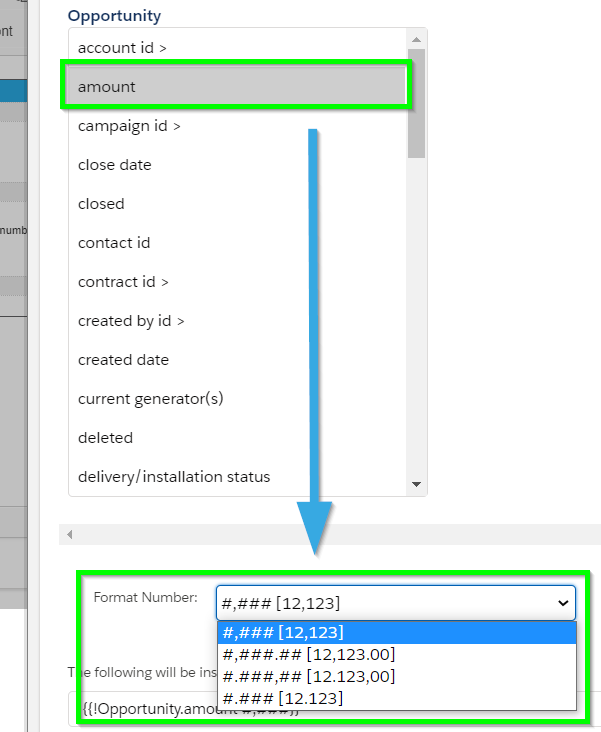
To format currency using S-Docs syntax, you can simply add the correct formatting directly within your merge fields (add a space after the merge field name, followed by the currency format you would like):

[code lang="html"]${{!Contract.Total_Amount__c #,###}}[/code]

You can add this formatting yourself, or use the Insert Field button within the template editor to do so; currency options will appear for currency fields.

If the number/currency field is located in a related list column, you would need to edit the template source. Click the Source button and then locate the number/currency field within your template. You then need to replace the syntax to match the following:

[code lang="html"]<column format-number="#,###">quantity</column>
<column format-number="#,###.##" prefix="$">unitprice</column>
<column format-number="#.###,##" postfix="€">euro_price__c</column>[/code]

The example above shows the three supported formatting options. For others, you can use a formula field described below.

Format Currency With Salesforce Formula Fields

By adding the following formula field to your object, you leverage built-in Salesforce functionality. You would need to substitute your field name into the formula below (in place of “Amount”), and then drop the formula field into your S-Docs template. You do not need to add any of these fields to any page layout. You can add the dollar sign ($) to either the start of the formula or within the template design document proceeding your field.

[code lang="html"]IF(
Amount >= 1000000,
TEXT(FLOOR(Amount / 1000000)) & ",",
"") &
IF(
Amount >= 1000,
RIGHT(TEXT(FLOOR(Amount / 1000)), 3) & ",",
"") &
RIGHT(TEXT(FLOOR(Amount)), 3) & "." &
IF(<
MOD(Amount , 1) * 100 < 10,
"0" & TEXT(ROUND(MOD(Amount , 1), 2) * 100),
TEXT(MIN(ROUND(MOD(Amount , 1), 2) * 100, 99))
)[/code]

Note: This solution formats only the given value; it does not consider currency exchange rates. In such cases, you could use a combination of formulas: one to convert the currency based on the exchange rate, and another to format it correctly for your document.

Formatting Dates

By Additional Formulas, Documentation, S-Docs Cookbook No Comments

If you want to create a dated letter with the text “September 1, 2020” rather than the Salesforce formatted date-time, you can do so using S-Docs formatting syntax or using a Salesforce formula field. We recommend the first option where possible because it doesn’t require any Salesforce configuration changes.

Formatting Dates With S-Docs Syntax

Formatting dates with S-Docs syntax is easy; any Salesforce date and datetime field can be configured into any valid java pattern. Simply add a space in your date or datetime merge field, followed by the format you want:

[code lang="html"]{{!Quote.createdDate MM/dd/yyyy}}[/code]

You can also include time and timezone. For example:

[code lang="html"]{{!Quote.datetime__c MM/dd/yyyy hh:mm:ss TZ:America/New_York}}[/code]

Note: Make sure to use java time codes when using timezones.

If the date field is located in a related list column, use the following (you would need to edit the template source). Click the Source button and then locate the date column within your template.

[code lang="html"]<column format-date="MM/dd/yyyy">createddate</column>[/code]

The format-date syntax can accept a wide range of values. You can add minutes, timezones, etc. Pay attention to caps, as mm is minutes, whereas MM is month.

Use this reference to view all date formatting options:  https://docs.oracle.com/javase/7/docs/api/java/text/SimpleDateFormat.html

Formatting Dates With Salesforce Formula Fields

If S-Docs syntax options do not meet your requirements, you can format dates by leveraging Salesforce formula fields. By adding the following formula field to your object, you can leverage Salesforce functionality. You would need to substitute your field name. You do not need to add these fields to any page layout. If you are working with a Date Field (not a DateTime field), see the next example for slight modifications needed.

[code lang="html"]CASE( MONTH( DATEVALUE(LastModifiedDate) ), 1, "January", 2, "February", 3, "March", 4, "April", 5, "May", 6, "June", 7, "July", 8,
"August", 9, "September", 10, "October", 11, "November", 12, "December", "-" )
+ ' ' + TEXT(DAY( DATEVALUE(LastModifiedDate))) + ', ' + TEXT(YEAR( DATEVALUE(LastModifiedDate)))[/code]


Displaying checkboxes

By Documentation, S-Docs Cookbook, Using Images No Comments

If you want to create a document that contains checkbox images rather than “True” or “False” values, you can do so in two different ways.

Display Checkboxes With The Checkbox Merge Field Attribute

The easiest way is to add the checkbox merge field attribute to any boolean field that you want to display as a checked or unchecked checkbox.

Example Merge Field:

[code lang="html"]{{!Opportunity.Checkbox__c}}[/code]

Standard Checkboxes:

Display a standard checkbox (dotted white border with black check) that is checked if the boolean field is true, and unchecked if it is false:

[code lang="html"]{{!Opportunity.Checkbox__c checkbox="true"}}[/code]

Display a standard checkbox (dotted white border with black check) that is unchecked if the boolean field is true, and checked if it is false:

[code lang="html"]{{!Opportunity.Checkbox__c reverse_checkbox="true"}}[/code]

Black Checkboxes:

Display a black checkbox (solid black border that fills in black with a white checkbox) that is checked if the boolean field is true, and unchecked if it is false:

[code lang="html"]{{!Opportunity.Checkbox__c checkbox="black"}}[/code]

Display a black checkbox (solid black border that fills in black with a white checkbox) that is unchecked if the boolean field is true, and checked if it is false:

[code lang="html"]{{!Opportunity.Checkbox__c reverse_checkbox="black"}}[/code]

Radio Buttons

Display a radio button that is checked if the boolean field is true, and unchecked if it is false:

[code lang="html"]{{!Opportunity.Checkbox__c checkbox="radio"}}[/code]

Display a radio button that is unchecked if the boolean field is true, and checked if it is false:

[code lang="html"]{{!Opportunity.Checkbox__c reverse_checkbox="radio"}}[/code]

Learn more about merge field attributes here.

Display Checkboxes With CSS

Checkboxes can also be displayed using CSS styling similar to the following example:

[code lang="html"]<style type="text/css">.checkbox {
border: 1px solid black;
padding-left: 2px;
padding-bottom: 2px;
height: 9px;
width: 9px;
}
</style>
CHECKBOX
<div class="checkbox"> </div>[/code]

Display Checkboxes With Formula Fields

You can also display checkboxes by leveraging a formula field.

By adding the following formula field to your object, you can easily leverage it to place checkbox images into your S-Docs. (You do not need to add the field to the page layout.)

Note: Your formula field should have a Formula Return Type of Text and should be referenced as rich-text when merging into a template. The field used in the example, IsAccount__c, should be a checkbox field on your object that is checked by default.

[code lang="html"]IMAGE(
IF(IsAccount__c, '/img/checkbox_checked.gif', '/img/checkbox_unchecked.gif'),
'CheckBox'
)[/code]

Embedding Google Charts into your document

By Documentation, S-Docs Cookbook, Using Images No Comments

Introduction

Leveraging Google Charts API provides a great way to include dynamic charts in your S-Docs.
You can find more information on Google charts here: http://code.google.com/apis/chart/

Create A Remote Site Setting:

This functionality requires an entry in Salesforce's Remote Site Settings.

  1. Click Your Name > Setup > Security Controls > Remote Site Settings.
  2. Click New Remote Site button.
  3. Set the Remote Site Name field to SDOCS3.
  4. Set the Remote Site URL field to http://chart.apis.google.com
  5. Make sure Active is checked and then click the Save button.

Google Chart Examples

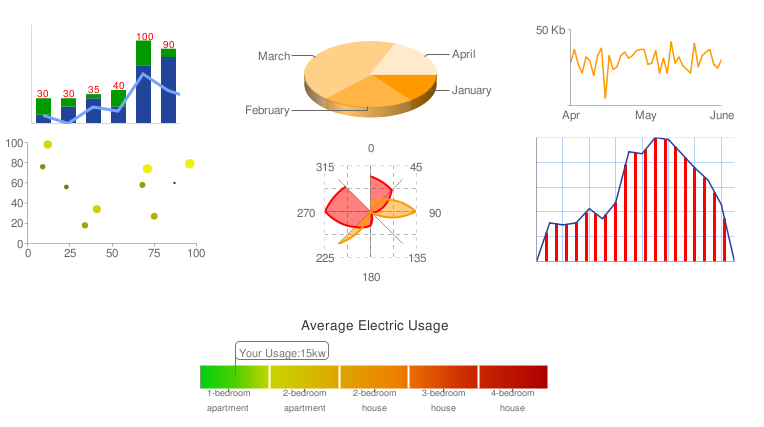
Here are a few examples of Google charts:

Google-charts

The charts work by passing the Salesforce data to the Google API, which in turn dynamically builds and returns the chart as a PNG image.

Security Note: Unlike S-Docs, which works entirely within the Salesforce.com platform, Google charts are hosted remotely. Depending on the chart, your data is passed from Salesforce to Google. Your security team would need to determine if this is an acceptable practice.

Images are rendered by using one URL request per chart. For example, you can manipulate the values in the following URL to render a different pie chart:
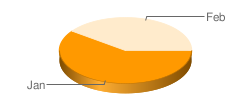
[code lang="html"]http://chart.apis.google.com/chart?cht=p3&chd=t:60,40&chs=250x100&chl=Jan|Feb[/code]
The link above will return the following image:

example-chart

As you may begin to see, using Google Charts API is all about creating these URLs where you pass in the data points, legends and chart options. Depending on the chart, some of these URLs can be long and a bit complex.

Option 1: Use Formula Fields For Your Google Charts

Rather than building complex logic within S-Docs to create these URLs, we again leverage Salesforce formula fields to do the heavy lifting.

Here is a great tutorial from Salesforce on how to create Google Charts using a formula field:

http://wiki.developerforce.com/index.php/Using_Formulas_and_Google_Charts_to_Visualize_Data

The above tutorial will walk through how to build the following formula field to display a Won/Loss pie chart:

[code lang="html"]IMAGE("http://chart.apis.google.com/chart?cht=p3&chd=t:" & Text(Won__c/(Won__c + Lost__c)) & "," &
Text(Lost__c/(Won__c + Lost__c)) & "&chs=275x100&chf=bg,s,F3F3EC&chl=Won|Lost&chco=5555ff", "chart text")[/code]
Then, we simply drop this formula field into our S-Doc template (be sure to check Contains Rich Text box).

Option 2: Use The Google Chart API URL In Your S-Docs Template

While more complex, another approach is to build the Google Chart API URL in your S-Doc Template and then mix in field values. This may offer you greater control. Using syntax similar to the following, you could add the image, where ChartLegend__c would just contain the value “Jan|Feb.”
[code lang="html"]lt#img src= quot#http://chart.apis.google.com/chart?cht=p3&chd=t:60,40&chs=250x100&chl=
{{!MyObject__c.ChartLegend__c}}quot# /gt#[/code]

Improving performance on pages with many Google charts:

The Google documentation offers a good performance tip if you plan to embed 5 or more charts. By appending a 1-9 before the “chart.apis.google.com,” you can have the browser load the charts simultaneously. For example:

  • http://0.chart.apis.google.com/chart?cht=...
  • http://1.chart.apis.google.com/chart?cht=...
  • http://2.chart.apis.google.com/chart?cht=...
Note: S-Docs does not support the Google Visualization API.

Adding Dynamic Images into Templates

By Documentation, S-Docs Cookbook, Using Images No Comments

Introduction

While you can insert static images into your templates, S-Docs can also insert dynamic images. For example, say you want to create a letter that includes an image of the representative’s signature at the bottom of a page. Or similarly, you may want to include an image of your product on a Product Specifications PDF. Rather than cloning the same template many times (once for each unique image), you would rather have just one template that dynamically includes the right image. You can accomplish this in several ways.

Option 1: Use a rich text field

This is perhaps the easiest method. You first upload your image into a standard Salesforce rich text field on your record detail page. Then, open the template in which you want to add the image, click on the Template Editor button, click on the Insert Field button, select the rich text field, click on the Contains Rich Text checkbox, and finally click on the Insert button. Your documents will now render the rich text content for that record wherever you placed this field.

Note: This option is only available for PDF documents. If your rich text contains many items or elements, it may not render precisely. This is because Salesforce uses a rich-text editor that auto-formats rich text content and this formatting cannot be overridden through a source editor. It is a better practice to use the S-Docs editor to control document layout rather than inserting a complex rich-text field into a template. By doing so, you also maintain template formatting in a central location (the S-Docs template) versus fragmented design elements located in rich text fields throughout individual records.

Option 2: Use a standard text field that contains the entire image markup

You can also use a standard Salesforce text field whose value contains the complete image element tag that you want to include. Each record would potentially contain a different link that corresponds to the applicable image.

For example, set the value of a ProductImage__c field on a Product record to:
[code lang="html"]PRODUCT IMAGE:<br><img scr=”/host/Product123Image.png” />[/code]
Then, using the S-Docs template editor, click on the Insert Field button, select the field, and then be sure to click on the Contains Rich Text checkbox.

This is a simple approach but has limited usage. It is useful for images such as representative signatures, where they are centrally controlled by an administrator, they do not change frequently, and the user would not normally need to view them in the Salesforce user interface along with the record. Since this is a text field, if you were to include this field on a page layout, it would not render as an image – users would only see the text shown above when viewing the record detail in the Salesforce UI. Therefore, it would not be appropriate for end-users who upload their own images frequently (e.g. a scanned photograph of a damage claim) or wanted to view the actual image in Salesforce within the record detail page.

Option 3: Use a formula field to display an image

Building on option 2, you can leverage a Salesforce formula field to create the image path and also display the image within the Salesforce record detail. You would then drop the formula field into your S-Docs template with the Contains Rich Text option checked (as described in the previous option). The formula field would contain something similar to the following:
[code lang="html"]IMAGE("/CompanyIntranet/Products”+ myObject__c.ProductID__c + “.png")[/code]
This option requires some planning so that the image field name can be programmatically derived.

Option 4: Build an image URL within the S-Docs template

This is a combination of options 2 and 3, but would not require a formula field. You can use a record’s existing field value to help build the correct image path, but you create the full path value within the S-Docs template, not in the Salesforce field.

For example, to include a dynamic product image or agent's signature, you can use something similar to the following in your document template source:
[code lang="html"]lt#img src=quot#http://intranet/{{!Product2.ProductPath__c}}.png quot# /gt#
lt#img src=quot#{{!Opportunity.Owner.SignatureURL__c}}quot# /gt#[/code]
The field value should be a URL that points to either an image in your Salesforce documents folder or an external image hosted on the public internet. In the second example, the field should contain the entire path including the ‘http://’ prefix.

Since the image path is text (not markup) it should only be surrounded by double curly braces, as shown above. The special notation for  <, >, and quotes, using lt#, gt#, quot# respectively, is used to instruct S-Docs that this markup needs to be evaluated rather than rendered literally. Having this flexibility gives you total control of how you want a field interpreted within the S-Docs template.

In order to compensate for relative URLs (e.g src=“/servlets/…”) that Salesforce automatically generates, S-Docs will automatically replace the relative path with the complete path, including the correct Salesforce.com instance (e.g. src=”https://na1.salesforce.com/servlets/...”). Doing this ensures your embedded images render correctly when viewed by others. If you wish to override this behavior and use a relative URL, you should specify the path to include the “http” (e.g. src=”http://servlet/”).

Discussion

Once you have inserted a marked-up field into your template, you will notice three sets of braces that surround your field, for example:
[code lang="html"]{{{!Product2.ProductImage__c}}}[/code]
The extra pair of curly braces instructs S-Docs to interpret this field rather than just displaying the stored value. Without this, S-Docs would not know whether a field containing the value “<img src=“//host/Product123Image.png” />”  should be displayed as the text quoted or substituted with the actual image when rendered. Whenever you add a field using the template editor and click on the Contains Rich Text checkbox, S-Docs will evaluate the value regardless of the actual Salesforce field type (Rich Text or otherwise).

If images outside of Salesforce are used in the S-Docs template directly, or dynamically through a merged image field, you must whitelist the URL domain (using Setup > Remote Site Settings) to avoid broken image icons in the PDF.

Embedding static images into your document

By Documentation, S-Docs Cookbook, Using Images No Comments

Embed Static Images Using Code

To embed static images, like a company logo, in your documents, you can use an image tag similar to the following in your S-Docs template source.

[code lang="html"]<image src="http://publicsite/imagename.png" />[/code]

This may be the simplest approach if you are emailing HTML content or wish to embed an image pixel for email tracking. However, keep in mind that if this image is not stored in your Salesforce org or if the host server is not under your control, the linked image may change and therefore is not guaranteed to work.

Embed Background Images/Watermark

A background image or watermark can be added to your document by including the following CSS styling with your image URL.

[code lang="html"]<style type="text/css">body{ background-image: url("https://background.image.url"); background-attachment:fixed; background-position: center; background-repeat:no-repeat;background-size:400px; } </style>[/code]

Note: The background image/watermark will be the same for every page of the document. For different images on different pages, you can use the DOCX document format.

Embed Static Images That Are Stored As Salesforce Documents

You can also embed images that are stored as Salesforce documents.

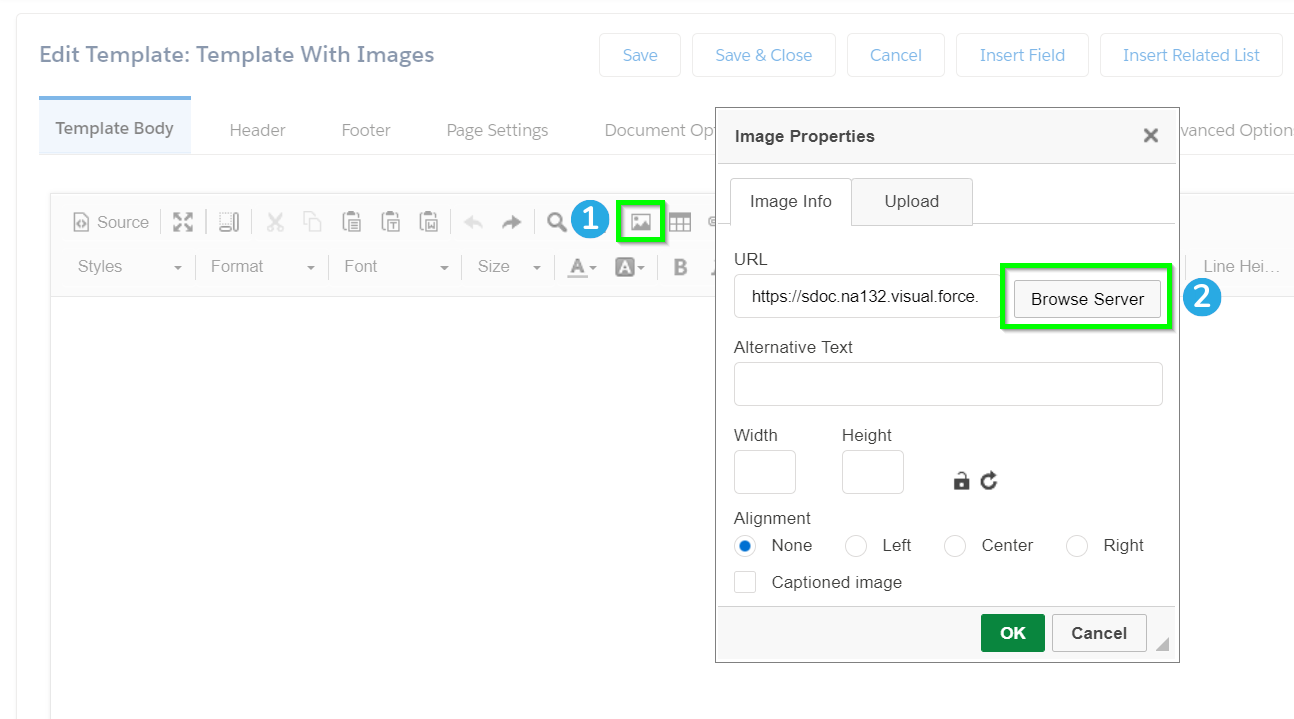
[1] Use the Add Image button on the template editor toolbar to open a menu for adding images into S-Docs.
[2] Click Browse Server to search and add the desired image from your Salesforce documents folder.

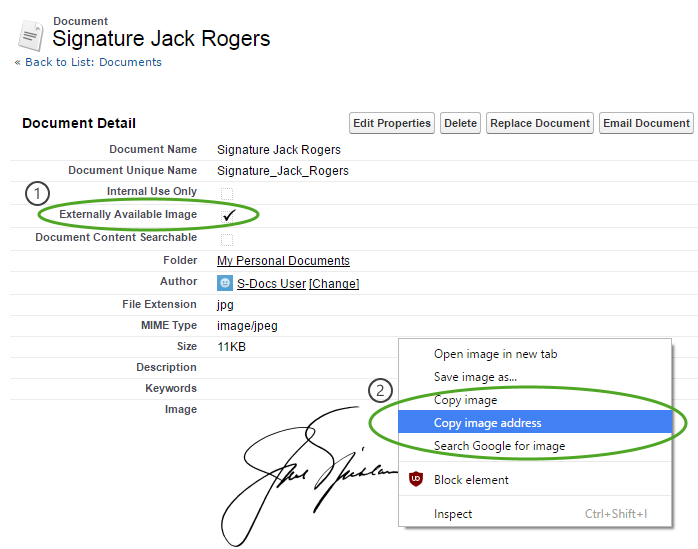
If you intend to send a document externally that requires access to the image at view-time (e.g. an email template), be sure that the Salesforce document record, which contains the image, is set for public visibility and copy the image's full URL: 1. Check the Externally Available Image box to make the image visible on the public internet. 2. Right click the image itself and copy its full URL. In Google Chrome, you would right click the image and click Copy image address. In Firefox, you would right click the image and click Copy image location. In Internet Explorer, you would right click the image and click Properties, and then copy the URL from the "Address (URL)" field in the following pop-up window.

Embedding Static Images (2)

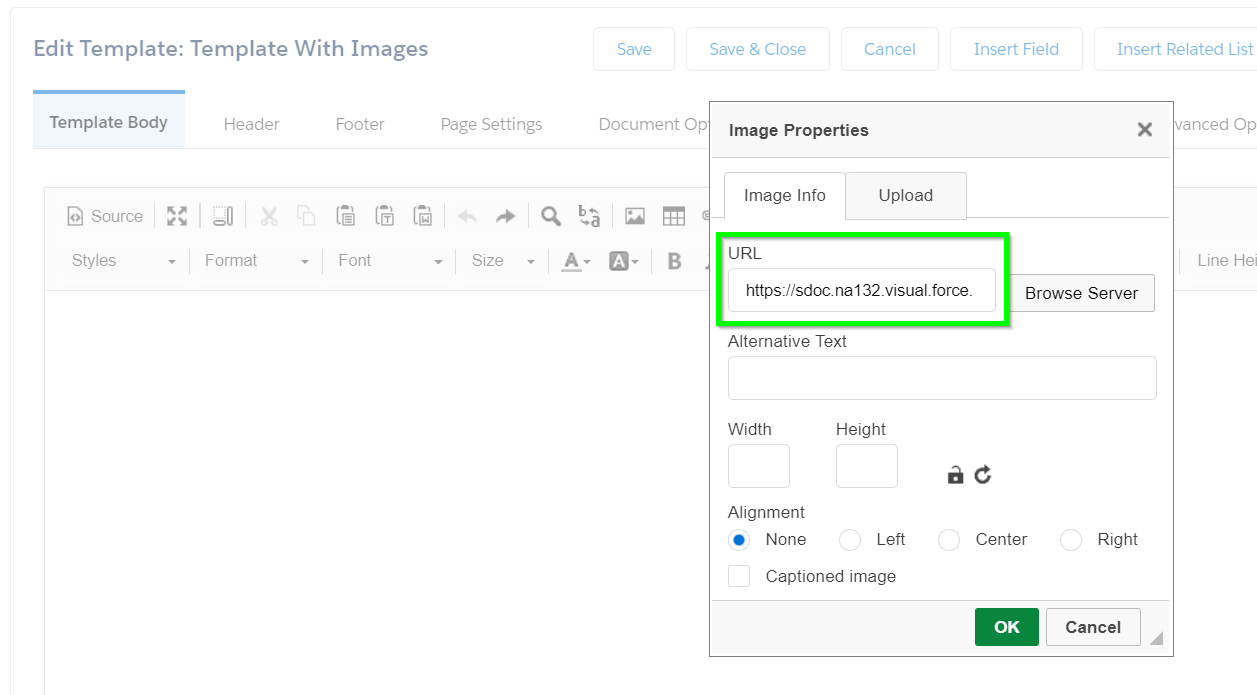
You can now add this image into your template by clicking the Add Image button icon in the template editor and pasting the URL you copied into the URL field of the "Image Properties" window.

Embed Static Resources As Images

You can also embed static resources as images within your S-Docs templates using the following code:

[code lang="html"]<img src="/resource/STATIC_RESOURCE_API_NAME/PATH_TO_IMAGE" />[/code]

For example, your static resource reference might look like this:

[code lang="html"]<img src="/resource/Pckg__Pckg_Images/FolderInTheResourceZipFile/the_image.png" />[/code]

Embed Static Images In DOC Templates

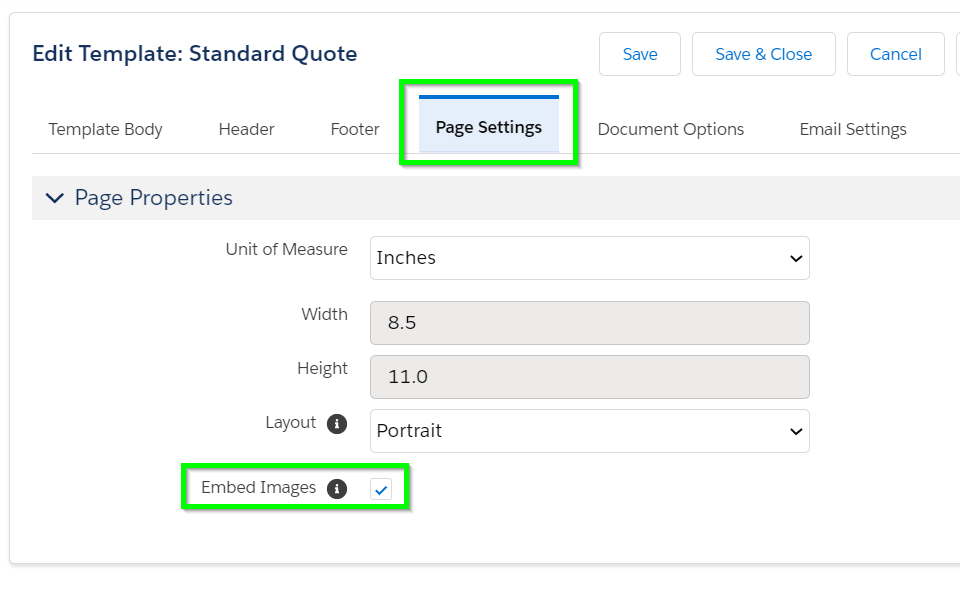
For DOC templates, in order to ensure that your images are scaled correctly in the final generated document, it is important to check Embed Images in the Page Settings tab of the template editor.

Additionally, the image source should be in this format (using the style attribute):

[code lang="html"]<img src="..." style="height: ...px; width: ...px;" />[/code]

Rather than this format:

[code lang="html"]<img src="..." height="..." width="..." />.[/code]

Note the difference in the height and width. If you use the second example, the images will show up as tiny squares in the generated document.
Finally, the user must click Enable Editing in Microsoft Word for images to download in the generated document.

Note: For images that you need to have externally available, note that the Browse Server button will use the local path rather than the full path, and your image will not be available externally (even if Externally Available Image is checked).
If you want this image to be visible externally (such as including it in an email sent to your customers), you must append the base URL to the beginning of the local path in the source code; e.g. if the Browse Server button uses this path: /servlet/servlet.ImageServer?id=01536000001T3ZE&id=00D36000000v29C&lastMod=147065920900), you must add https://na30.salesforce.com to the beginning to make the image externally available.

You can also forgo using the Browse Server button and use the full path from Classic view rather than the local path (e.g. use: https://na30.salesforce.com/servlet/servlet.ImageServer?id=01536000001T3ZE&oid=00D36000000v29C&lastMod=147065920900 rather than: /servlet/servlet.ImageServer?id=01536000001T3ZE&id=00D36000000v29C&lastMod=147065920900) when referencing the image in your S-Docs template. This is why we copied the image's full URL and pasted it into the "URL" field of the "Image Properties" window in the steps above.

Moving S-Docs Templates from Sandbox to Production

By Best Practices, Documentation, S-Docs Cookbook No Comments

Video Tutorial

Import Templates With The S-Docs Template Migrator

Moving S-Docs templates from your Salesforce sandbox org to your Salesforce production org is easy with the S-Docs Template Migrator. The Template Migrator will generate a .zip file of templates that can be imported into any org of your choosing. If your template contains attachments (such as DOCX templates), those will be included as well. If any of your templates are S-Sign enabled, the S-Sign data will also be preserved. Let's take a look at how this works.

Note: S-Docs 4.210 or higher is required to use the S-Docs template migrator. S-Sign version 2.78 or higher is required to migrate S-Sign templates.

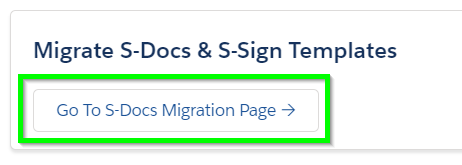
If you are using S-Docs 4.381+, navigate to the S-Docs template migrator by clicking the App Launcher, typing "S-Docs," and clicking S-Docs Setup in the dropdown menu. Scroll down to the Migrate S-Docs & S-Sign Templates section and click Go To S-Docs Migration Page.
If you are using a version of S-Docs below 4.381, navigate to the template migrator by appending the following after "salesforce.com" in your browser:

[code lang="html"]/apex/SDOC__SDMigrate[/code]

You'll be presented with this screen.
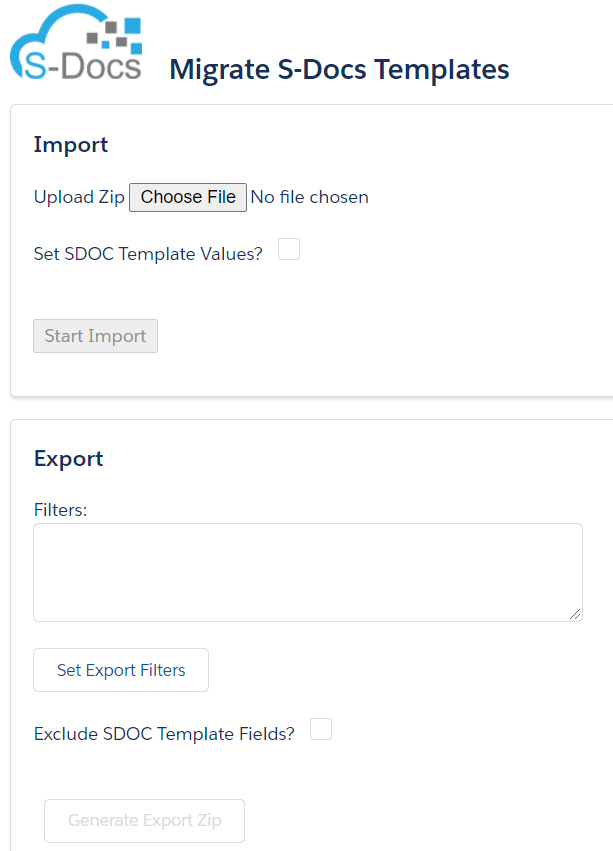
This page has two sections: Import and Export. We'll look at Export first.

Export Templates

The template Export section appears as follows:
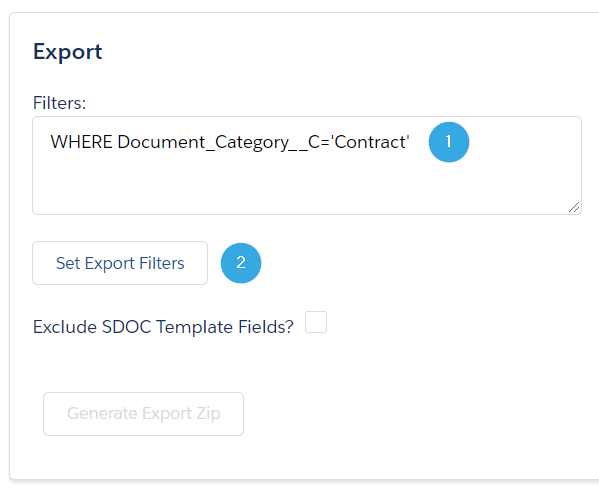
To generate a list of templates to export, begin by [1] setting filters for which templates should be included. Filters need to be written using SOQL syntax. The example above uses the following filter:

[code lang="html"]WHERE Document_Category__c='Contract'[/code]

This will generate a list of all templates with the Document Category field set to "Contract." [2] Click Set Export Filters to generate a list of all templates that meet the filter criteria.


Example Export Filters

The following table provides different SOQL filter syntax and what the template migrator will return. This list is not exhaustive and is only intended to provide samples of acceptable syntax.

Filter Output
WHERE Name LIKE '%Master Service Agreement%' All templates that contain 'Master Service Agreement' in the Template Name field.
WHERE Name='Quote' OR Name='Business Proposal' All templates with a Template Name of "Quote" or "Business Proposal.'
WHERE Base_Object__c='Opportunity' ORDER BY CreatedDate DESC LIMIT 5 The 5 most recently created templates with a Related To Type field set to "Opportunity."
WHERE Name IN ('Invoice','Standard Invoice','Invoice - By Product') All templates with a Template Name equal to exactly "Invoice," "Standard Invoice," or "Invoice - By Product."
Note: If you do not specify any filters, clicking Set Export Filters will generate a list of every S-Docs template in your org.
Note 2: To find a list of field API names for the SDoc Template Object, navigate to Setup > Object Manager > SDoc Template > Fields & Relationships. Note that most fields are preceded by the SDOC__ namespace prefix; be sure to omit this prefix when including fields in your filter.
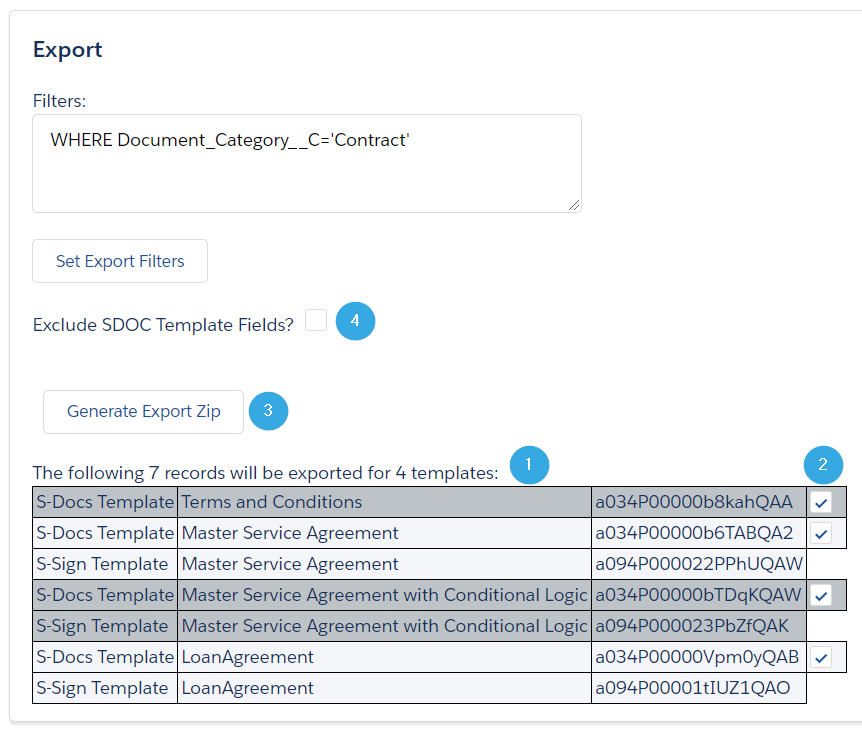
After clicking Set Export Filters, every template that meets your filter criteria will be [1] added to the table at the bottom of the page. This table displays the Template Type, Template Name, and Template ID fields. If your S-Docs template is S-Sign enabled, a separate S-Sign template will be included with it; when you import these templates into a production org, they will be recombined into a single template. You can [2] use the checkboxes on the right to manually include or exclude certain templates from your export.

[3] Click Generate Export Zip to generate a .zip file that contains all of your templates. If you'd like to exclude data from individual template fields from being carried over, you can [4] check the Exclude SDOC Template Fields? box. This will open up a new menu.

Exclude SDOC Template Fields

The Exclude SDOC Template Fields menu appears as follows:
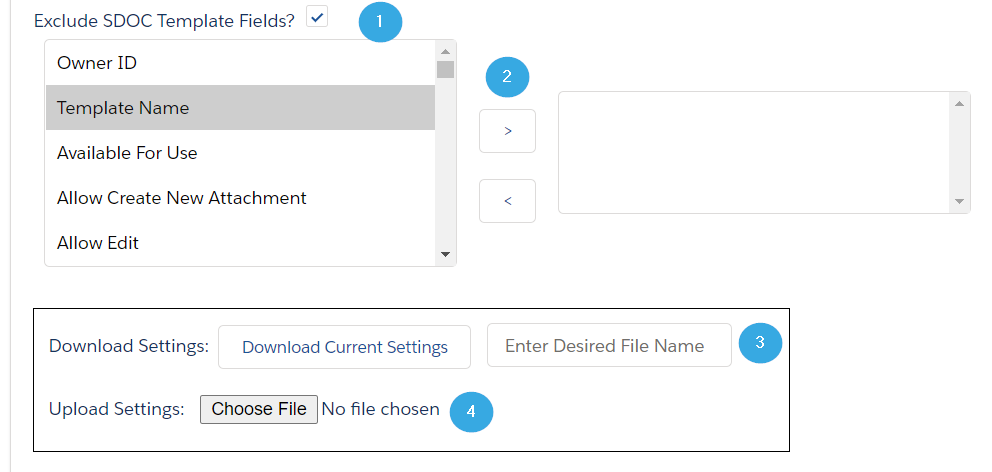
To exclude data from individual fields in your template export, [1] select the field on the left and [2] use the arrow keys to add it to the exclusion list on the right. If you select Template Name, for example, all of your templates will be imported into your production org without names.

If you want to preserve these settings (i.e. you want to exclude the same fields every time you export templates), you can [3] enter a file name and click Download Current Settings to download the settings as a .txt file. When you need to export templates again, you can [4] select Choose File and upload the .txt settings file.

Note: The Download Current Settings button will also save any filters that you used to generate your list of templates for export.

Import Templates

The template Import section appears as follows:
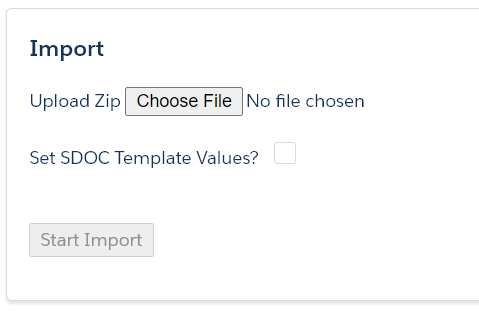
Click Choose File to select an exported .zip file of S-Docs templates.
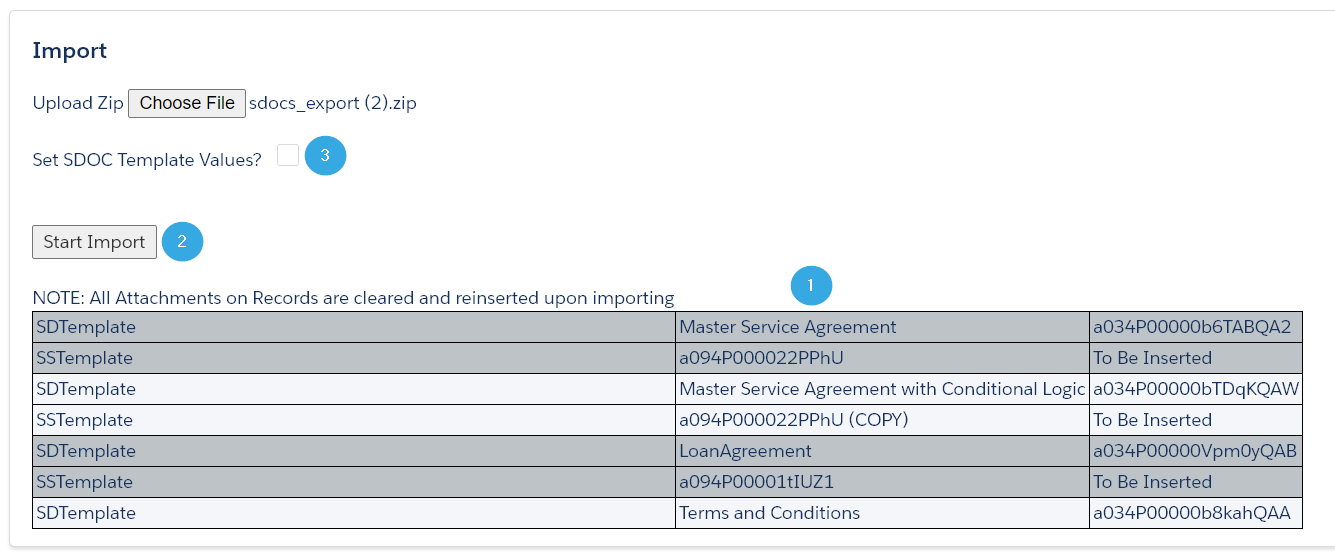
When you upload your template file, [1] each template will be added to the template table at the bottom of the Import section. Just like in the Export section, you can view the Template Type, Template Name, and Template ID fields. [2] Click Start Import to import your templates. You can also [3] set certain field values for your templates before importing them by checking the Set SDOC Template Values? checkbox. This will open up a new menu.

Set SDOC Template Values
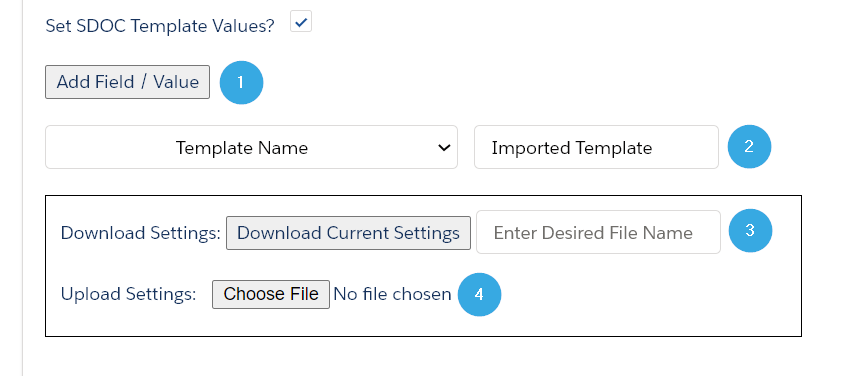
To begin, [1] click Add Field/Value. [2] A picklist of template fields will appear underneath, along with a text field where you can set the field data. In the example above, the Template Name field of each imported template will be changed to "Imported Template." Click Add Field/Value again to set additional fields.

Note: Set Boolean fields (such as Allow Edit) using True or False.

If you want to preserve these settings (i.e. you want to set the same field values every time you import templates), you can [3] enter a file name and click Download Current Settings to download the settings as a .txt file. When you need to import templates again, you can [4] select Choose File and upload the .txt settings file.

After your import is complete, a success message will appear under the Start Import button.

Template Migrator Considerations

  1. If you're migrating PDF-Upload templates that were created prior to S-Docs version 4.210, you'll need to convert any images that are present in them to Attachments. Previous versions of S-Docs stored these images as Documents, but the template migrator will only be able to export and import PDF-Upload templates that store images as Attachments. To convert older PDF-Upload templates, append the following URL after "Salesforce.com" in your browser:
    /apex/SDOC__SDMigrate?convertPDFPageImages=true
    This will add a Convert PDF Page Images button to the template migrator that will convert all PDF-Upload images to Attachments for you.
  2. The template migrator uses a field called Org_Agnostic_ID__c that doesn't change when it's migrated across orgs. This allows the template migrator to update a template that already exists in the production org when migrating the corresponding template from the sandbox org, rather than re-inserting the template and ending up with duplicates in the production org. If you've previously transferred templates using a utility other than this one (e.g. Data Loader), the templates you migrated will not have an Org-Agnostic ID in the production org, and hence won't be updated when you upload an export that includes the corresponding templates from another org; rather, the templates in the export will just be inserted and you'll end up with duplicates. In this case, you can delete all of the templates from the production org, then perform an import using this tool.

Import Templates Individually

If you created only a few (i.e. less than 15) S-Docs templates in your sandbox that you would like to move to your production org, you can import each template individually.

Import Templates Using Data Loader

You can also use the Salesforce Data Loader to import a large number of templates, although this method is not recommended -- the S-Docs template migrator is best practice for importing or exporting a large number of templates. If you want to use data loader, follow the steps below:

  1. Using DataLoader, export all SDoc Template records and fields from your sandbox org.
  2. Edit the resultant CSV and perform the following:
    1. Remove the row with NAME = "License Key"
    2. Remove all ID field columns (ID, CREATEDBYID, LASTMODIFIEDBYID, OWNERID, SDOC__Component_IDs__c, SDOC__Preview_Id__c, and SDOC__Master_Template__c)
    3. Remove all Date field columns (CREATEDBYDATE, LASTMODIFIEDDAE, LASTACTIVITYDATE, SYSTEMMODSTAMP, etc.)
    4. Remove all ENCODE field columns (SDOC__Template_XML_Encode__c, SDOC__Template_XML_Encode10__c, SDOC__Template_XML_Encode2__c, SDOC__Template_XML_Encode3__c, SDOC__Template_XML_Encode4__c, SDOC__Template_XML_Encode5__c, SDOC__Template_XML_Encode6__c, SDOC__Template_XML_Encode7__c, SDOC__Template_XML_Encode8__c, SDOC__Template_XML_Encode9__c, SDOC__Terms_XML_Encode__c)
    5. Remove all formula (SDOC__Format_Icon__c, SDOC__Restore_Link__c)
  3. Save as import CSV.
  4. Using DataLoader, insert the import CSV file from Step 3 into SDoc Template on your production org.
  5. Open Developer Console on your production org. Insert and execute the following in an Execute Anonymous window:
    [code lang="html"]update [SELECT Id FROM SDOC__SDTemplate__c WHERE Name != 'License Key' ORDER BY SDOC__Template_Format__c];[/code]

    Note: If you have more than 100 templates you may need to add LIMIT 100 OFFSET 0 to the SELECT statement and execute the update multiple times, incrementing the OFFSET value by 100 each time until all templates have been updated.

Discussion

If your templates make references to data (images, related lists, etc.) in your sandbox, these references still might work in your production instance. This is because templates in production are still able to use data from sandboxes. This is undesirable behavior; if you change/delete your sandbox, or change/delete certain data in your sandbox, then these references will no longer work.

We recommend pointing image references in your sandbox templates directly to image URLs in your production org. If you do this, you won't need to update any of your images once you move your sandbox templates into your production org.

We strongly recommend that you recreate all other types of sandbox data in your production org. After importing your templates into your production org from your sandbox, you can then proceed to update your templates to reference the data in your production org, rather than the data in your sandbox org.

Top